Marketo's AI Conversational Interface: A Real-World Test of the Import Leads Feature
We imported a deliberately messy 30-row CSV into Marketo's new AI Builder to see how it handles duplicates, bad casing, mixed formats, and null values. Here's exactly what it did, and what it can't do today.

Heading 1
Heading 2
Heading 3
Heading 4
Heading 5
Heading 6
Lorem ipsum dolor sit amet, consectetur adipiscing elit, sed do eiusmod tempor incididunt ut labore et dolore magna aliqua. Ut enim ad minim veniam, quis nostrud exercitation ullamco laboris nisi ut aliquip ex ea commodo consequat. Duis aute irure dolor in reprehenderit in voluptate velit esse cillum dolore eu fugiat nulla pariatur.
Block quote
Ordered list
- Item 1
- Item 2
- Item 3
Unordered list
- Item A
- Item B
- Item C
Bold text
Emphasis
Superscript
Subscript
TL;DR
Marketo's AI Builder is rolling out to customers beginning May 2026. Visibility may be limited during the phased rollout. If you don't see it in your instance yet, it's likely on the way.
If you'd like a demo of Marketo's AI Agent or MCP Server releases, reach out to us at [email protected].
If you've spent any time importing lead lists into Marketo, you know the routine: export your CSV, cross your fingers on field mapping, manually hunt for duplicates, fix casing issues, and then discover mid-import that three records have no email address. It's tedious. It works. But it doesn't have to be that way.
Adobe recently launched an AI-powered import workflow inside Marketo Engage called ‘Build with AI’, and the Import Leads function is one of its headline features. I put it through its paces with a deliberately messy 30-row test dataset designed to stress-test exactly the kinds of data quality problems that make list imports painful. Here's what happened.

The Test Setup: A CSV Built to Break Things
To get a meaningful test, I built a CSV file with every common import headache baked in:
- Duplicate records: 3 sets of duplicates (same email appearing twice; one case of same name, different email)
- Inconsistent name casing: ALL CAPS last names, all-lowercase first names, mixed casing
- Mixed state formats: some records used 2-letter codes (MN, CA, TX), others used full state names (Minnesota, California, Texas)
- Mixed country formats: US, USA, and United States all appearing in the same file
- Random null values scattered across Phone Number, City, Annual Revenue, Postal Code, Email Address, Lead Source, Job Title, and Company Name
- A special character in one company name (PharmaPlu$) to test sanitization
- Two records for the same person with different email addresses (corporate vs. personal Gmail)
The goal was to simulate the kind of real-world event lead list that comes off a badge scanner or event registration form. Messy, inconsistent, and in need of cleanup before it touches your database.
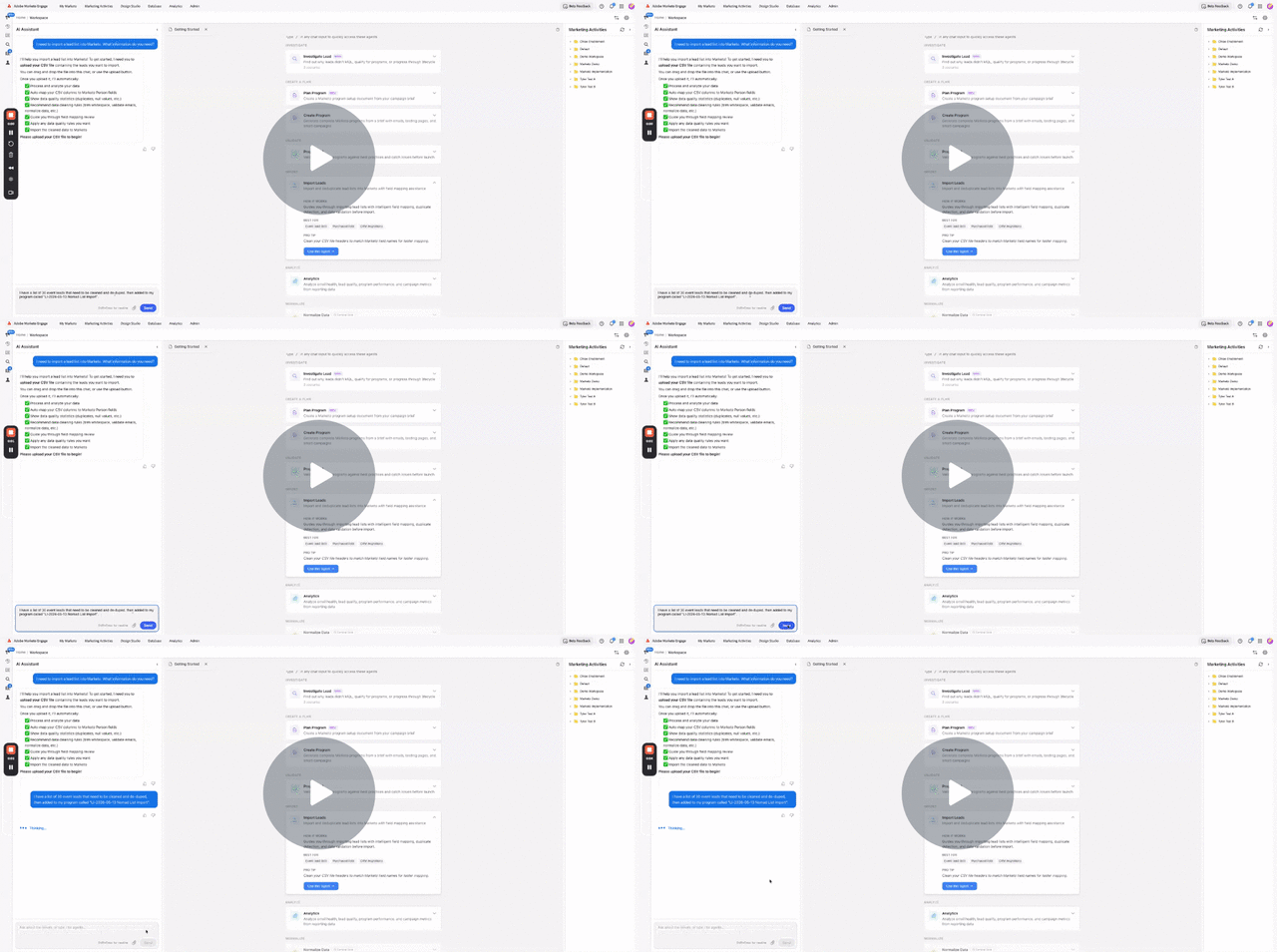
Step 1: Uploading the File and the Instant Analysis
The experience starts in a conversational AI panel alongside the data preview. After uploading the CSV, the AI immediately ran an analysis and surfaced a clean summary:
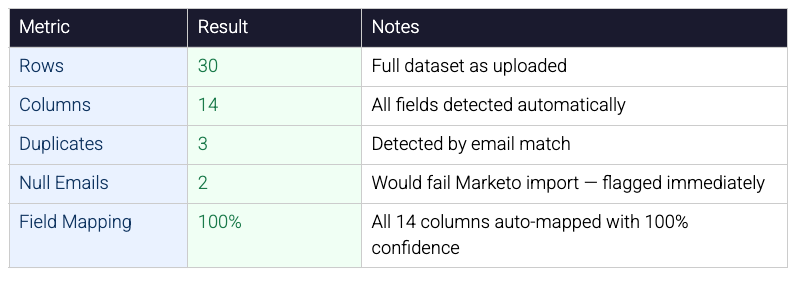
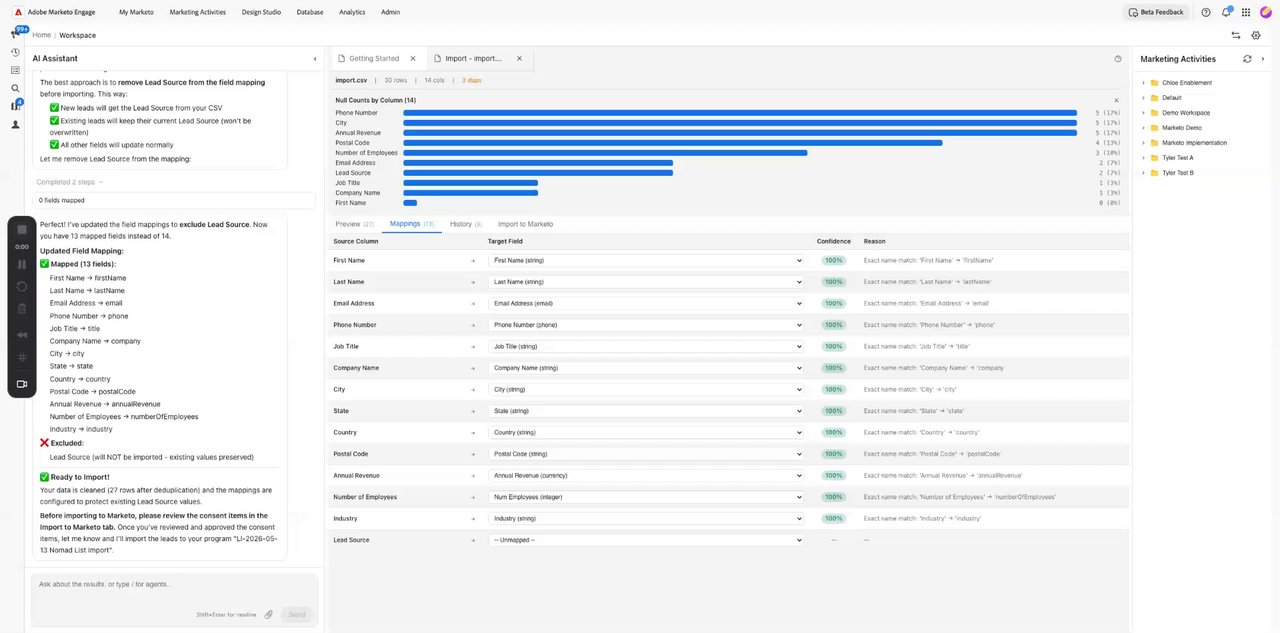
The null count visualization (shown as a horizontal bar chart per column) was particularly useful: it gave an immediate sense of which fields had coverage issues without having to manually scan the data.
What Worked Well
The AI correctly identified that the two records for 'John Smith' with different email addresses ([email protected] vs. [email protected]) were NOT duplicates, they're distinct records in the system. The dedupe logic is email-based, not name-based, which is exactly right for Marketo.
Step 2: Field Mapping: 100% Confidence, No Manual Work
Field mapping is historically one of the most manual parts of a Marketo import. You're essentially translating your spreadsheet column headers into Marketo's internal field names, and if your headers don't exactly match, you're clicking through dropdowns.
In this test, every single one of the 14 source columns was mapped to the correct Marketo Person field with 100% confidence, and each mapping included a visible reason. For example:
- First Name → firstName | "Exact name match: 'First Name' → 'firstName'"
- Number of Employees → numberOfEmployees | "Exact name match"
- Annual Revenue → annualRevenue (currency type) | Correctly typed as currency
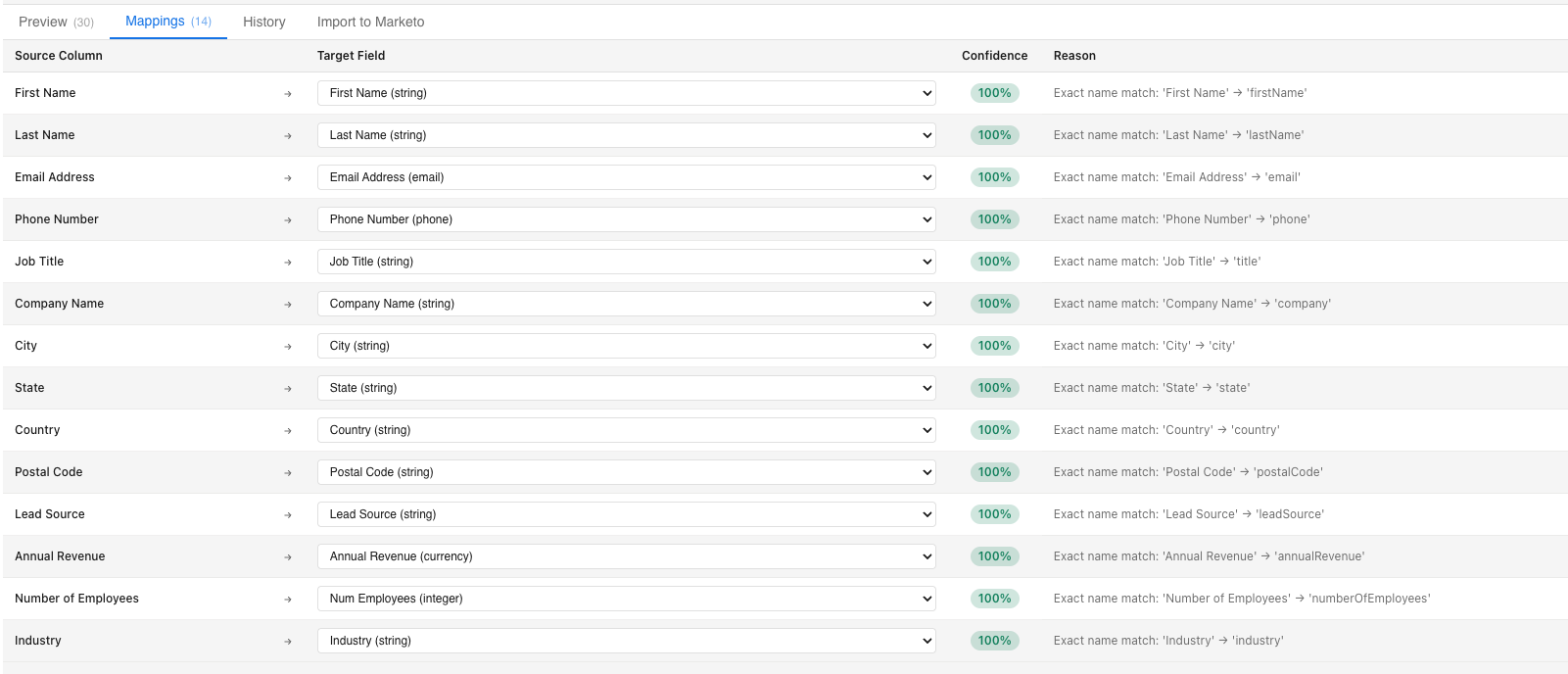
The mapping panel is still fully editable. You can override any auto-mapped field via a dropdown, but for a clean column-header file, there's nothing to change.
Limitation to Note
The 100% mapping success here was partly because the test CSV used clean, descriptive column headers that matched Marketo field names closely. If your CSV uses abbreviations or custom naming conventions (e.g., 'Rev' instead of 'Annual Revenue'), confidence scores will vary and manual review will be needed.
Step 3: Data Cleaning: Nine Rules, One Click
This is where the AI Builder starts to feel genuinely different from a standard import flow. After reviewing the mappings, the AI surfaced nine recommended data quality rules and offered to apply all of them at once. I instructed it to apply all recommended rules, with one addition: do not overwrite Lead Source for records that already exist in Marketo.
The Nine Rules Applied:
- Trim Whitespace: No changes needed (data was already clean here)
- Null Empty Strings: No changes needed
- Normalize Email Lowercase: 1 email standardized
- Normalize Phone: (E.164) — 25 phone numbers reformatted to +1XXXXXXXXXX
- Title Case Names: 19 names fixed (proper casing)
- Normalize State Codes: 13 state names converted to 2-letter abbreviations
- Normalize Country: 17 country values converted to ISO codes (US)
- Validate Email: All emails passed validation
Remove Duplicates: 3 duplicate rows removed (keep-first-occurrence strategy)
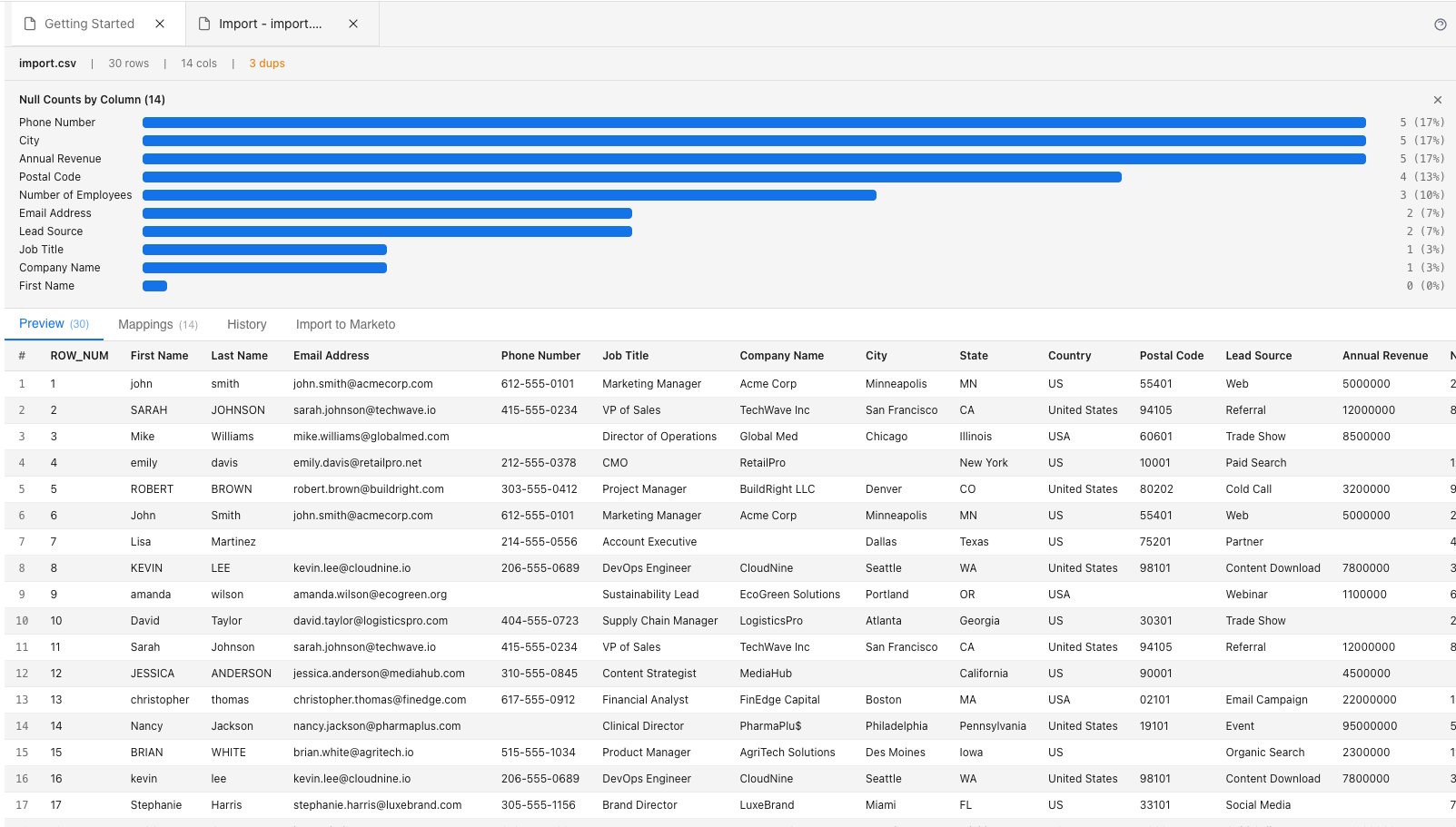
Total impact: 78 cell-level changes across 27 remaining rows
A preview tab in the center panel shows exactly what changed at the row and field level. Which is useful for audit purposes or for double-checking the AI's work before committing to import.
Step 4: The Lead Source Protection Conversation
This was the most interesting part of the session, and the one I'd flag most prominently for any Marketo admin reading this.
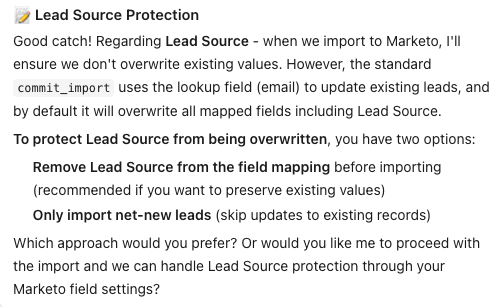
When I told the AI I didn't want Lead Source overwritten for existing records, it immediately explained the underlying technical reality: the standard Marketo import (commit_import) uses email as the lookup key and, by default, overwrites all mapped fields, including Lead Source, on matching records. It then offered two solutions:
- Remove Lead Source from the field mapping (recommended by AI for preserving existing values)
- Only import net-new leads (skip updates to existing records entirely)
I chose Option 1 and unmapped Lead Source. But here is where the real-world outcome diverged from what the initial framing suggested, and it required a second, deeper conversation with the AI to fully understand.
I asked the AI to run a pre-import analysis: check every email in the CSV against Marketo and tell me which records were net-new versus already existing. The results were telling: of the 28 importable leads, 25 already existed in Marketo and only 3 were net-new. With Lead Source unmapped, the actual outcome was:
- The 25 existing leads: Lead Source preserved in Marketo - no overwrite. This part worked as intended.
- The 3 net-new leads: Lead Source came in completely blank — even though values were present in the CSV. This was the unintended consequence
Marketo Demo | Build with AI | Data Cleaning - Watch Video
This is a fundamental constraint of how Marketo's import engine works: there is no conditional field logic. You cannot instruct it to 'only update Lead Source if blank' or 'only set Lead Source for new records.' The choice is strictly binary: map the field and it overwrites every matching record, or don't map it and every record (new and existing alike) comes in without that value. There is no middle ground.
Why This Matters
Marketo's import API does not support conditional field updates. If a field is mapped, it overwrites the value on every matching record, no exceptions. Removing a field from the mapping protects existing records but also means net-new records arrive without that value populated. For Lead Source specifically, the recommended workaround is to unmap it during import (protecting existing attribution data), then run a Smart Campaign afterward to set Lead Source only on records where it is currently empty.
Step 5: Import Results
After reviewing and confirming the consent items in the Import to Marketo tab, the import was submitted. The final outcome:
Started with: 30 rows
- Removed — 3 duplicates: 27 rows
- Failed — 2 rows with no email address: 25 rows imported successfully
The 2 failures were expected and correct. Marketo requires email as the unique identifier for lead records, so rows without an email address simply cannot be imported. The AI explained this clearly in its post-import summary rather than leaving it as a cryptic failure code.
What the AI Builder Does Well
- Instant data profiling: null counts, duplicate detection, and field mapping happen automatically on upload
- Accurate auto-mapping: with well-named columns, zero manual mapping required
- Practical cleaning rules: the nine recommended rules cover the most common real-world issues without requiring any configuration
- Proactive data governance: surfacing Lead Source overwrite risk before the import is the kind of guardrail that prevents expensive mistakes
- Clear audit trail: the Diffs tab and post-import summary give you full visibility into what changed and why
- Conversational interface: natural language instructions work well; the AI understood "do not overwrite Lead Source" and translated it into the correct technical action
What It Can and Can’t Do Today
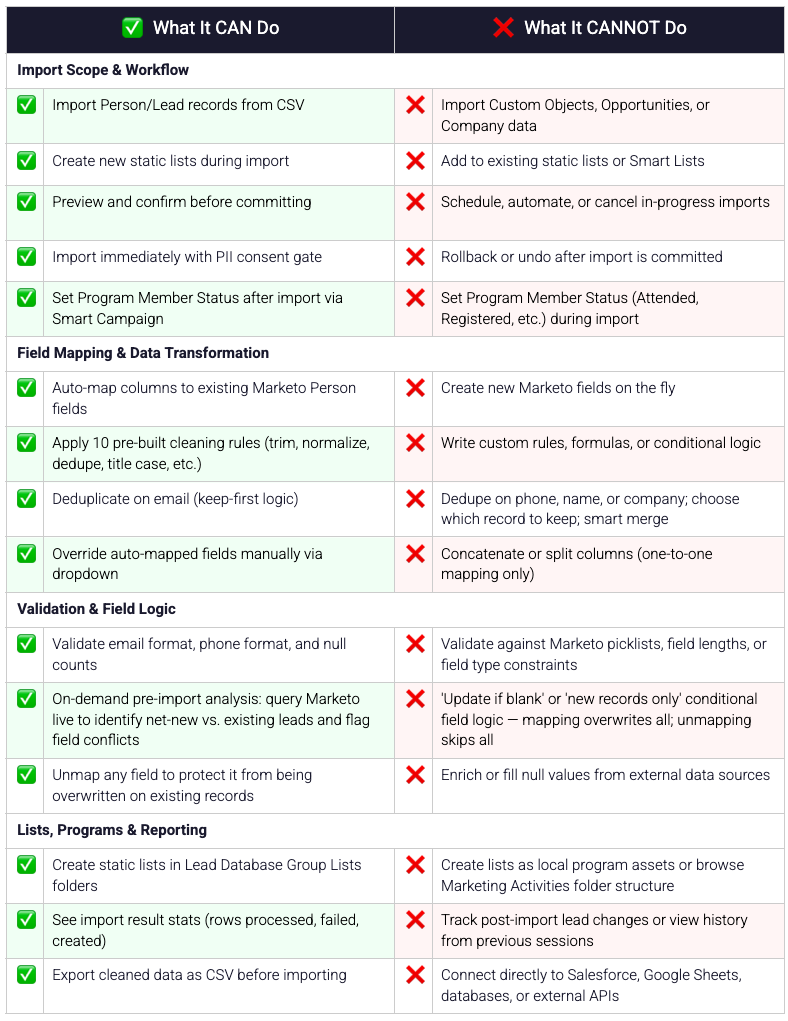
After completing the import test, I asked the AI directly: what can't you do? To its credit, it produced one of the more thorough self-assessments I've seen from an AI-assisted tool: a 30-point breakdown across import scope, field logic, validation, workflow, and technical constraints. Rather than reproduce all of it here, the table below captures the most decision-relevant points for a Marketo admin evaluating whether this tool fits their use case.
The short version: this is a purpose-built import assistant, not a general-purpose data integration platform. It does the 80% use case exceptionally well. The edges are where you need to understand the constraints.
Bottom Line
Marketo's AI Builder Import Leads function is a genuine improvement over the standard import workflow, particularly for teams dealing with messy event leads or third-party list uploads. The combination of automatic data profiling, one-click cleaning rules, and a conversational interface that can explain what it's doing removes most of the manual grind from a routine but error-prone task.
The Lead Source experience, however, is worth calling out as a microcosm of the tool's current maturity. The AI correctly identified the risk, explained the mechanics, and offered two valid options. What it didn't do, at least not unprompted, was fully articulate the side effect of Option 1: that unmapping Lead Source protects existing records but silently leaves net-new records with an empty field. That gap only became clear after a follow-up conversation specifically designed to probe it. For admins who run an import and don't dig deeper, it's a quiet data quality issue waiting to happen.
That said, the fact that the AI could run a net-new vs. existing pre-import analysis on demand, querying Marketo live, comparing it to the CSV, and surfacing specific field conflicts before a single record was committed, which serves as a genuinely improvement to classic Marketo list import exercises.
The limitations are real and well-defined. This is not a general-purpose data integration tool. It handles the 80% use case: clean, normalize, dedupe, and load a CSV of Person records. For complex transformations, Custom Object imports, scheduled syncs, or conditional field logic, you'll still need external pre-processing or Marketo's native tooling. But for the post-event lead list that needs to go into Marketo today, it's fast, transparent, and meaningfully smarter than anything that came before it.
Tests were conducted in May 2026 on Adobe Marketo Engage by Nomad. Screenshots and session transcript available. Test CSV generated with 30 intentionally flawed records across 14 fields.

Nomad’s first hire, Lu, brings 15+ years of marketing operations experience from a variety of B2B tech companies. Lu is solution-focused and approaches every project as an opportunity to get creative. She specializes in implementations and building the most intricate and innovative models yet. If you can dream it, chances are Lu can build it. Example projects include advanced funnel architecture, complex lead scoring models, custom routing rules, and logic. Lu isn’t just a beast at MOPs; in her free time, you can find her laying it all out on the football field.